Showing posts with label google. Show all posts

Friday, February 27, 2026

Google Gems (and EduGems)

While Google's NotebookLM has taken much of the acclaim and headlines for how Gemini AI can transform learning, another free tool over the past year has been shaping up to be its contender:  Google Gems.   While Notebooks can offer audio and video overviews, infographics, slide decks, and seemingly new beta Studio tools every fortnight, Gems can offer a more nuanced kind of support.  Gems are customizable AI chatbots you can load up with your own vetted documents, which you then can easily share.

For a short (12:08) overview on Gems, watch this video by Eric Curts (and more on Curts in a moment):


Recently, Google for Education provided a wonderful deep slide deck of resources titled "100+ ways to use Gemini in K-12 Education."  One of the slides gives a short comparison of Gems versus NotebookLM:

A labeled screenshot of Google Classroom, labelled with the differences between Gems and NotebookLM. (Unless otherwise indicated, all screenshots are from this slide deck.)

As another way of comparing the two, here are some pertinent details:

  • Purposes.  NotebookLM is usually for larger, deeper synthesis needs with multiple output opportunities, while Gems are more for specific, single outputs.
  • Amount of files.  NotebookLM can have up to 50 sources uploaded; Gems can have up to 10.  However, a possible workaround for Gems is below.
  • Kinds of files.  Both can use many of the usual suspects: PDFs, Google Docs and Sheets, Word and Excel, images and videos.  However, NotebookLM also allows website URLs, YouTube videos, and "copy and paste" sources, while Gems does not.  Interestingly, however, Gems will always recognize and use the latest version of a Google Doc or Sheet attached; NotebookLM only knows the "instance" version of the Doc/Sheet when first uploaded.
  • Kinds of outputs.  As mentioned before, NotebookLM has a wide (and growing) set of Studio tools, starting with Audio and Video Overviews.  A Gem is more of a monotask outputter, only doing what it is set up to do.  These do not have to simply be text-based lesson plans or an email, however!  To take just two examples, a Gem could create coloring pages or a graphic novel.
  • Use both!  A Gem can now have a NotebookLM added as a source file, thereby increasing a Gem's capacity of sources beyond its normal "10 files maximum."

Gems are great if you want to take the burden of prompt engineering off of the end user by writing a guiding "script," yet ensure a guard rail experience where the source of knowledge is based only on the documents of your choosing.   In effect, you are being a light programmer creating a new app, but without worrying about having to write actual code. 

Gems sit inside of Gemini itself, in its "Gem Manager" dashboard.   You can see Gems you made and saved (which you can always edit and customize further), Gems shared with you (as you can receive or give sharing rights like any other Google Doc), and of course, create a new Gem.


Writing an excellent prompt is the heart of a Gem.  For many an AI PD, I've shared Google's PARTS strategy on how to compose a more effective script (taken from this free course) by thinking of how to be more specific and detailed when thinking of each, um, part of PARTS.  However, the original handout I've used considers PARTS from the first person perspective of the prompter ("I am a third grade teacher..").   For a Gem, it may be more helpful to consider a second person perspective, like the example below.  In a meta moment, with a push of the "magic wand" button in Gems, you can also use "Gemini to rewrite [the] instructions" for you.


As I mentioned before, Gems can be shared with specific people, or made usable by all via its hyperlink.  Indeed, Gems could theoretically be shared inside a Google Classroom with students. However, the use of Gems by students in your educational domain may or may not be allowed, depending on the settings determined by your Google admin.  (For more, read this help article.)  Dr. Jim Masters, superintendent of Henry County Public Schools (KY), launched a specific Gem math tutor "grounded in learning science" with students.  Afterwards, over 250 of them answered a survey, and the results were noteworthy: "57% can now solve a similar problem independently" and "72% said [how the Gem demonstrated] breaking the problem into steps helped them most."  While some students admitted they wished the Gem would have just given them the answer (therefore admitting the Gem kept productive struggle and didn't minimize their cognitive load), many also said they still appreciated, or even preferred, the way their teachers helped them work through a problem.  The humans still matter in the loop.  "Technology can scale feedback," said Dr. Masters, but "teachers develop thinkers.  Student voice is now driving the next iteration — the same way a product team studies user experience."

When learning how to create a well-engineered Gem, a model can be helpful so you can peek "behind the curtain" and analyze its script.  (They tend to be more complicated and "code-like" than a typical genAI prompt.) There are also moments when you want to save time and simply utilize a well designed Gem made by someone else.  With that, we return to Eric Curts and his EduGems website:


The site is a collection of curated Gems, most made by Curts himself.   The Gems run the gamet  -- some educator-facing, some for students to use directly, and for various contents and needs.  There's a category that really caught my attention (for obvious reasons) called Engagement and Games, with Gems such as "CYOA Story" and "Historical What If."  Let's look at one called "Gamified Learning":


Along with a short description of each Gem, you have two choices.  You can interact directly ("Use the Gem") or "Make Your Own Copy"; the link is a force copy that will automatically save it into your own Gem Manager.   Note that once you have your copy, you can preview its prompt and potentially customize it.


Here is the Gamified Learning Gem "ready to use." Note that you have to give a Gem some kind of indication that you want to start -- typing "Hi" or "Begin" is fine.


When interacting with a copy of "Gamified Learning," you can see the Gem in editing mode.  Note the full prompt on the left and the chance to preview the Gem on the right.

EduGems also offers tutorials, and a Google Form where you can submit your own Gem for potential inclusion on the site.

Google Gems offer a handy way of reusing an excellent prompt over and over and easily make a sharable chatbot based on key sources you trust.   Even if you don't use Gems often, deconstructing a well-made one can teach you a lot about AI and prompt engineering.   Thanks to Google for making another highly useful free tool.  And special thanks to Eric Curts for curating an educational Infinity Gauntlet website of inspiring Gems!

Saturday, August 9, 2025

Google Vids (and other Google updates for Summer 2025)

Google has had a busy summer with plenty of updates, including a new product that I've finally had some time to play with: Google Vids.  But before we get to Vids, let's briefly cover some other territory that educators will find important to know.


If you're a teacher who has logged into Google Classroom lately, you've probably noticed that your workspace now includes Gemini baked in, and more specifically, has multiple tools at your fingertips to help you more effectively complete tasks.  It's clear that the popularity of the "custom bot dashboards" prevalent in several other AI learning platforms has encouraged Google Classroom to do the same. 

[Update 10/14/25:  Eric Curts created a deep dive video on the various pre-made AI tools inside Google Classroom, linked here (19:03)].


While the built-in capability of Gemini is currently only available for the teacher side of Google Classroom, Gemini itself is now available for students of all ages.  Additionally, Google NotebookLM (perhaps the most pragmatic AI tool I currently use) will also be available for "all ages in the coming months" (per a Google Workplace Team email sent June 17, 2025).  You can read more in Google's June 2025 blog announcement.  Of course, your Google Admin may choose to keep this toggled off for certain age groups (or for all of your students!) and/or for one or both tools; it's worth asking what your district's plan might be.  Remember that for educational accounts only, Google has made assurances that AI data and usage will remain private to the domain itself, usage will not train Google's AI machine, and inputs/outputs will not be human reviewed, as they first announced back in May 2024. 

Speaking of NotebookLM, it's perhaps no surprise that it continues to upgrade.  The output language can now be changed, and that can include the (in)famous "Audio Overviews."  You've likely been wowed by the Audio Overviews feature (and if you're like me, also a bit disturbed by its capacity for human mimicry); customization can now allow you to make them shorter or longer in length, or give the Overview specific topics to focus upon.  But perhaps the most dramatic leap for NotebookLM is the beginning of Video Overviews:


I was able to try this out on a personal free gmail account (upgraded features usually tend to chronologically lag behind for educational domains, so be patient if you don't see the feature yet).  I picked a Notebook with two sources that were focused on the topic of flexible learning spaces: a Google Slide conference presentation I did back in 2021 about the then just opened K-8 school Marnel C. Moorman in Shelby County, and a 2018 article in Edutopia. Despite only having those relatively short sources, the generation for what turned out to be a seven minute Video Overview took at least ten minutes on a Friday night.  While it's likely this will get better, or possibly be another incentive to go Pro (for faster generations?), I would caution you from expecting a Video Overview to load in the same short time it currently takes to generate an Audio Overview.  Yes, yes, you might be asking, but what was the quality?  Well...I was blown away, just like I was about Audio Overviews only a year ago.  As I'm still impressed and mulling over the possibilities of what an Audio Overview can bring to the table for learners, the Video Overview comes along. It basically creates your very own short documentary of your uploaded sources.  And like Audio Overviews, you can share or download the videos.  (In order to watch the video via a shared hyperlink, you have to share viewing rights to the entire Notebook.)  As always, the AI was not perfect, but I'll take some of the blame too. For example, my presentation had a quote from a different Edutopia article spoken by a teacher in a California school (attributed by the article name and hyperlink on the slide), but the video narrator mistakenly stated "as one of the MCM teachers Stacey Lamb said..," which, given the slide scanned superficially as is, seems a fair misunderstanding.  Watching the whole seven minutes, I found very little else to nitpick, especially considering if my goal was to create a sophisticated summarization of my sources.  Here's the Video Overview it generated for me, also downloaded and saved to my Google Drive:

Staying on the topic of videos: one of Google's tools getting some considerable press recently is Veo 3. This is another example of the continual evolution of text-to-video genAI in the marketplace; the outputs are longer, more sophisticated, and can now include AI-generated sound and dialogue.  It's impressive, and brings more ethical concerns, but I mainly passed it by for practical reasons -- it's not cheap, and therefore not likely to be in a typical K-12 teacher's classroom anytime soon.  (However, Google is offering a free year of their AI Pro plan to college students, if they redeem the offer by October 6.)

But if you are looking for a practical Google video tool for teachers and students, it's now finally time to discuss Google Vids.  In a nice flip, this is currently available for all educational users at no charge, but is not available for free/personal Google accounts.  Here's a quick elevator pitch to describe the tool: "An online video editor that's as easy to use as Google Slides."

Creating a new Google Vid is like creating most products in the Google Suite: it's an option for the New button in your Drive, or a choice on your waffle, or simply typing vids.new in your address bar.  There are templates you can choose from if you want to create your project more quickly.  


You can import media (such as Google Slide decks, audio files, and screencasts), make everything from scratch, or do a bit of both.  A tip: I think it's easier to "compose" the skeleton of your video by starting in Google Slides, then importing it into Vids. However, note that anything animated, or clickable, will simply "flatten" once it gets into Vids (after all, you can't hyperlink inside a video), much in the same way that Slides downloaded as a PDF may lose the same features.


Once in editor mode, you can easily add transitions between "scenes," or lengthen/shorten a scene by dragging it by the end.  You can also record a video or audio file to insert into your project, making choices like doing a voiceover a breeze.  One of my favorite features of Vids is Script, located in the sidebar.  You can type what you want to say and it will scroll like a teleprompter while you record your audio or video.  If recording a video, this also means you can look directly into the webcam while you speak.

This screenshot of creating a Script is courtesy of a Google for Learning course.


This screenshot of using a Script as a teleprompter while recording video is courtesy of a Google for Learning course.

Collaboration in Vids happens like a typical Google doc -- you can share viewing, commenting or editing rights to your project. If it's viewing only, the viewer will actually only be able to play the video from your project.  This deserves a bit of emphasis, because in a practical sense it means your Vid becomes a real-time living artifact just like a Doc or a Sheet; you could share a link just once and the viewer will always see the most recent updates, as opposed to having to delete an old video and resharing a new link to the latest uploaded version.  This alone can save significant time and increase workflow.  That capability aside, you can also download the final video as a MP4.

You can create Vids as an assignment in Google Classroom for your students!  First, create a template that you want students to customize and add their own text and materials. (One of the fun Inserts to consider is a "Video Placeholder," available in various cutout frames; when an editor comes across one of these icons, they can click on it to record their own video that will be automatically matted to the chosen shape.)  You can then assign it in Classroom, making sure it "force copies" for each student.  Students can open the assignment, edit it and turn in the Vid like any other Google doc.  Here's a short video about creating Vids assignments in Classroom, from a free Google for Learning course:


There is admittedly a cookie-cutter aspect that could occur when students are creating videos within the templated perimeters of Vids.  However, the intuitive ease of editing in Vids "in the cloud," as well as the ability to quickly share and collaborate, means that students should be able to spend more time on the content than on the clicking.  The bottom line: you can make polished videos in a fraction of the time it took before, and for free.  

This screenshot is courtesy of a Google for Learning course.

It's worth noting that if you pay for an upgraded AI license, you can also use Gemini inside of Vids to create genAI video content or voiceovers.  Here's a video (7:59) showing how Gemini integration with Vids works:


It used to be that improvements or new tools in Google were incremental -- you might be lucky to see something new every few years.  As with all edtech nowadays, that speed of change has rapidly increased.  By the time we hit spring 2026, I will expect new Google features that will likely make even the amazing ones in this blog entry seem quaint and "sooooo 2025."


Sunday, October 6, 2024

Google's NotebookLM

In the last several months, Google has noticeably stepped up its artificial intelligence AI game to compete with ChatGPT and others.  However, it is Google's latest release, NotebookLM -- still considered to be in its "Experiment," or beta, phase -- that is truly a showstopper.  

Your ability to access NotebookLM may depend on your Google Admin's controls, as well as the typical slow rollout of new Google apps to domains.   As I've done PD and demonstrated the tool over the last few weeks, I'd say half of the school districts in the room could use it, and half could not.  If you currently cannot access it, check back weekly and/or put in a ticket for your head IT admin.  (Like many optional Google products, your Google admin can choose whether only teachers should access it or if/when students can.)

How does it work?

Using NotebookLM requires being logged into your Google account.  After going to the platform's website, you are asked to create a new Notebook or play with several pre-made examples.  (After you create your first Notebook, you will go straight to a page where you can edit/view your Notebooks, create a new one, or explore the examples.)  From the beginning, it's important to point out that Notebooks created in educational domains may not be able to be shared or viewed outside your own district -- at least for now.  (Interestingly, that's not an issue for Notebooks made by a personal Google account.)


For a new Notebook, the first step is sharing resources.  Those fall in four buckets: uploading a file from your hard drive (for example, a PDF, TXT or MP3), sharing a Google file from your Drive (currently, only Google Docs and Slides), a URL of a website or YouTube video, or pasting some copied text.  There is a limit of fifty (!) sources you can share for a single Notebook.


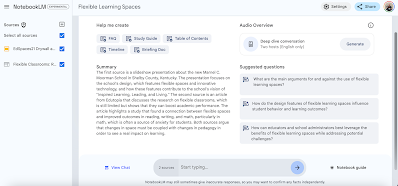
After some seconds of analyzing your sources, you land on the "home" page of your Notebook, called the "Notebook Guide" (see the blue asterisk/text in the lower right, where you can switch back and forth from this to your "Notes" page).  At this point, you can edit the name of the Notebook at the top.  At the bottom, you see a field to put in your own questions or tasks about your sources.  It's important to note this is not a search engine; you're using the power of Gemini AI to delve into just your chosen sources!  You also see four other choices for exploration:

  • Help Me Create:  several buttons to autogenerate certain structures related to your sources, such as a FAQ, Table of Contents, and a Study Guide.  Note that some of these, such as the Table of Contents, actually generates a ToC for each source, not everything you've attached.  Generated content goes on your "Notes" page.
  • Summary: An overview of your sources.  
  • Suggested Questions:  Notebook suggests three possible inquiries of your sources using Gemini AI to answer if clicked.  These can become part of your "Chat History" alongside any other custom questions or tasks you posit; this history is viewable by clicking the lower left text ("View Chat").
  • Audio Overview:  this feature is too mind-blowing to just whiff over, so more on it in a moment.

On the Notes page, you see potential saved responses as discussed above, or you can "Add Note."  At first, this may seem like a typical text note, but when completed, you can checkmark one or more of these notes and blue buttons will appear below to "Help Me Understand," "Critique," "Suggest Related Ideas," or "Create Outline."  These are, of course, all AI powered.   Note the Gemini-powered input bar to type questions or tasks remains below as before.

Are you ever annoyed that AI provides output of info but you don't know where it came from?  That was an early complaint I had about ChatGPT (although to be fair, some later genAI like Microsoft Copilot has such transparency built in). NotebookLM tackles this by not only adding footnotes to its outputted inquiries to show its source, but with a click, you can go to that part of the source document!
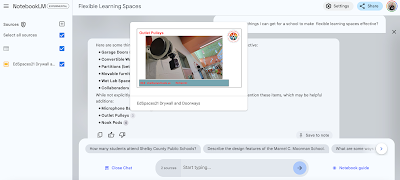
Hover over the number, and its location in the source is previewed...


...and if you click the number, the source appears on the left, going straight to where it occurs (in this case, a particular Slide).

We now have to finally address Audio Overview.   While all of the previously described aspects of NotebookLM are pretty impressive, it's Audio Overview that gets the most oxygen when people discuss the tool.  In the upper right of your "Notebook Guide" page, hit "Generate" to create a "deep dive conversation."  This can take a few minutes to render.  Once ready, hit play, adjust the playback speed if you like...and I dare you not to close the lid of your laptop like I did, just to process what I just heard.  Google pointedly does not call it a "podcast," but it's hard not to think of one when you hear two hosts who sound very much like a man and a woman talking about the sources you've attached -- complete with informal interjections, thoughtful pauses, stutters, human-like rise and fall of intonation, and even laughter.  (It's also not a perfect simulation -- over the course of 8 to 10 minutes, there are several strange pronunciations, moments of flat affect, glitchy audio, and/or sound dropouts.)  I've marveled at quite a bit of AI over the last few years, but this feature had me floored.  Another interesting thing is that Google has apparently trained its AI on a significant amount of podcasts to recognize certain algorithms. For example, I created a Notebook around one PDF of how a teacher uses TTRPGs in his own classroom.  I never explained what a TTRPG was in the PDF, as this was considered given schema in its original context.  And yet, the Audio Overview took pains to define what a TTRPG is at the start, just as you would likely expect in a typical podcast for a general audience.  At the end, it even dreamed of other ways you could use TTRPGs in other classrooms, although again, that was not anywhere in the original PDF.   Last but not least, when the Audio Overview uses the second person, the audience is clearly "you" -- that is, the Google account who made the Notebook.  It's not a human podcast, but it may be the world's first personalized learning, machine-generated podcast.

Remember that you cannot currently share Notebooks outside of your educational domain.  However, click the three dots for the Audio Overview and you have the option to download it as a WAV file, which could then be shared however you like.  (Again, rules are different for personal Google accounts; in fact, NotebookLM allows you to create a URL you can share so that anyone can hear your Audio Overview streaming within a browser.)  Here's an example of an Audio Overview where my Notebook's sources included a Google Slides presentation I did at EdSpaces in November 2021 along with an Edutopia article.

Friends, we are in new AI territory.  And remember, NotebookLM is currently beta!
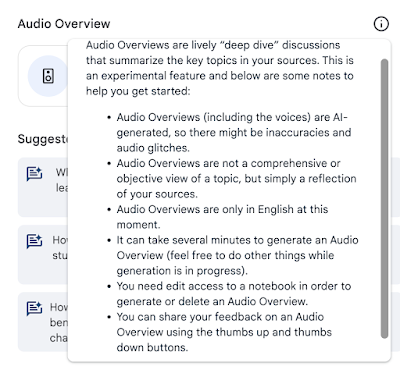
Google provides some informational disclosures on the Audio Overview feature.  The second bullet is particularly interesting, as I've already encountered "extra" information in my Audio Overviews.


Some findings and tips that have emerged as I've done some early (and albeit limited) tinkering:

  • When you originally begin to start adding resources to a new Notebook, the process is different depending on the kind of source.  For example, if you select a hard drive file to upload, it will immediately begin building a Notebook after just one is selected; if it's a Google File, you could conceivably choose multiple Docs and Slides before Notebook creation starts.
  • Once the Notebook is created, you can add or remove additional resources to your Notebook with the slideout panel from the left side. If you add or subtract any resources, however, the only way I've found to "reset" the Notebook with the updated info is to refresh and reload the entire tab.
  • If you click on a single source on the left, Notebook will summarize just that one source; online articles are shown as a simplified version of the text.
  • When connecting multiple sources, the amount of text/info in a long source may tend to dominate the others.  For example, I uploaded a 180 page PDF alongside my deck of 40ish slides, and my slide deck wasn't even acknowledged in the Summary.  When I uploaded the same slide deck with the Edutopia online article, both sources were singled out in the Summary and the outputs more balanced.
  • When you leave and return to a Notebook, previously generated Audio Overviews are not immediately available to play, but have to be "retrieved" with a button push.  This usually is resolved much faster than the original time it took to generate, however.
  • Could you break Gemini's attempt to find patterns and summarize if the sources (at least to human eyes) were random and in no way related?  Maybe.  It might be worth the experiment to see how Notebook perseveres to make sense of such chaotic data.

How could you use it?

From the student side, NotebookLM gives them the opportunity to create a body of content that they can interrogate with inquiry.  It clearly gives struggling students some scaffolding tools to wrestle with new material.  Imagine how much easier research can be if you use AI to scan a long document for particular information!   A teacher at a recent PD of mine pointed out that a teacher could create and share a Notebook as a kind of last minute "sub plans" activity -- have students interact with the notebook, including listening to the Audio Overview.  Since we know AI is not 100% accurate (although the footnoted sources to inquiries are a welcome touch of assurance!), I did a "yes and" to that idea and recommended a reflective analysis where students look for flaws either in programming execution or in the facts presented (by reading/listening to/viewing the original sources), but most importantly, how did NotebookLM better help them understand the content?

Downsides?

The ability to currently share your Notebook only within your own educational domain is a frustrating limitation, although considering that not all domains even have access to NotebookLM yet, it makes sense.  I also wish that if you clicked on a source in the left side panel, the source itself would open in a new tab (at least if it's a URL or a Google file).  Lastly, I think a large "reset" button after sources are added/removed would be more intuitive for a user.  Beyond these technical critiques (which, to be fair, may be addressed by the time NotebookLM goes alpha), AI makes us once again approach another instructional crossroads.  GenAI has already proven itself able to write essays, poems, and songs; what does it mean for students to learn how to synthesize and find themes when they can upload their three social studies primary documents to NotebookLM and produce a summary and a "podcast" within seconds?  The answer may be that NotebookLM can and will be used to produce first drafts where students analyze for errors and extend upon; to be a collaborative research partner; and models that students can learn from to imitate and improve.


I'll definitely be tracking this tool as it goes from "experimental" to full release in the months ahead!


This tool was first brought to my attention by Rebecca Simons of Murray State University's Kentucky Academy of Technology Education (KATE).  KATE has been around since 1996, and is a wonderful resource for emerging edtech tools, as well as opportunities for PD.  Consider joining the eduKATE community!

Friday, May 24, 2024

Gemini for Google Education: Highlights of their Latest AI Release (May 2024)

It's been a big month for generative AI updates!  Back on May 13, ChatGPT announced ChatGPT-4o (as in "Omni"), a "new flagship model that can reason across audio, vision, and text in real time."  In various short videos, that new "reasoning" was demonstrated in pretty remarkable ways.  Fire up the app on your laptop, and it actively listens and even participate in your meeting (providing insights and summaries), or it can tutor you on understanding a math problem.  Open it on your phone, and it can translate between two speakers in real time, referee two people playing rock-paper-scissors, or even make a new song while harmonizing with a second ChatGPT AI.  Additionally, the lag of input to output is reducing down in time so much that interacting with ChatGPT will start to feel like a human in natural conversation. 

It's another example of ChatGPT seemingly leapfrogging its competition.  Since November 2022 when ChatGPT first broke through to the general public, other major generative AI platforms have come forward, but without as much fanfare.  Microsoft's Copilot has an attractive user interface and, among other features, can generate accurate images inside of itself, allows voice-to-text input, and provides hyperlinks in responses, yet I hardly hear it as a person's first AI platform of choice.  Google's AI went from Bard to the renamed branding of Gemini and was much like Copilot in its features.  While Gemini and Copilot allows uploading of images, you can upload both text and image files to analyze or alter in ChatGPT.  (A quick disclaimer: as you likely already know, AI is sometimes wrong and hallucinates.  When it comes to inputs, I highly recommend trying prompts in multiple genAI platforms and comparing the results.)  

But that was then, this is now.  Gemini may have finally played its ace card with its latest upgrade, announced in a live webinar yesterday.  (By registering, you can get access to the 45 minute archived recording.)  Finally, Google seems poised to lean in on two of its major assets: its near-monopoly of education with its variously tiered domains,  and having the world's most popular cloud-based productivity app suite.

Here are some of the highlights from the webinar.  (Images are screenshots from the webinar unless otherwise noted.)


There is now a premium version of Gemini AI, one that can be incorporated across some of the core Google apps: Docs, Gmail, Slides, Sheets, and Meet.   With the upgrade, AI help is just a button click away.  This integration is likely a game-changer.  Why pop open a new tab for another genAI when Gemini could be built right in?

From the Google course "Get Started with Gemini for Google Workplace."

However, for educational domain customers, Google recognizes there are special needs.  Gemini will now offer, free of charge, several assurances: the data inputted from students and teachers will not be human reviewed, not be used to train AI models, and not be shared outside of their domain. (These three highly sought features are coming "soon," a phrase used several times in the webinar and in its various promotional material graphics.) For educators with privacy concerns, this alone might be a compelling reason for a school district to recommend Gemini over other genAI tools.  Vivek Chachcha, Product Manager of Gemini Education, promises that the AI tool will help "save time," "make learning more personal," "inspire creativity," and help students "learn confidently" (by "empower[ing] students with guided support").  

The webinar included several video examples of Gemini at work in various Google apps, and some shorter excepts of these videos are available separately on its Google for Education YouTube channel.

Although this video shows examples from higher ed, they could apply to anyone needing to increase their productivity and effectiveness (2:58):


In this clip, an instructional coach uses Gemini to draft a professional development session agenda in Sheets (35 seconds):


In this last clip, a teacher inside of a Doc creates a first draft of feedback on a student's poem (47 seconds):


In a related tool revealed earlier this week, Google also has a "side panel" feature that will incorporate Gemini.  This will basically allow the AI to look across your various apps and files in Google Drive in order to complete the task.  (Currently, access to this side panel requires being enrolled in Google Workspace Labs, which will likely need the approval of your domain's admin.)


An example of Gemini's side panel, inside of my personal Google Drive.

Yes, yes, you may be saying, but what about the price?

First, it may be helpful to compare the current free Gemini chat AI (accessible in a separate tab, at its own URL) versus the new paid Gemini for Workspace:

Next, note that these paid licenses come at two different tiers of pricing.  (The upper "Premium" license includes Gemini being able to have "advanced meetings" in Google Meet, a potential nod to the ChatGPT meeting summary/interaction feature mentioned at the start of this blog entry.) The good news: there is no minimum number of licenses you can purchase for users, and there is a discount if you order with a yearlong commitment before August 23, 2024.  The bad news: these premium features do not come automatically with any current upgraded Education domain tier, although Education Plus customers can qualify for a bit more of a discount, again if ordered before August 23.


While the integration of Gemini across your Google apps does cost, it is easy to see how powerful the AI could be for Google Suite learners.  If nothing else, it certainly gives Gemini an opportunity to jump to the front of the genAI competition line!

I'll end this blog entry with some Gemini resources:
  • For tech and IT friends, read this blog entry from "Workspace Updates" (5/23/24) for an official Google breakdown of Gemini for Google Workspace for Education's coming upgrades.
  • If you're interested in more of a general audience narrative of what's happening with Gemini in education, here's an entry from Google's blog on 5/16/24.
  • Looking for even more ways to use Gemini for Google Workspace in education, from Google itself?  Check out these Slides from April 2024.  The resources and tips include advice on writing better prompts, multiple visual examples of how to use Gemini in various apps, and help for domain admin.
  • Google offers some free online courses.  Here's one I just completed myself, and I highly recommend for a low-stress walkthrough: "Get Started with Gemini for Google Workspace."  (It requires logging in and allowing ExceedLMS to access your Google account, but again, it's free!)
One last thing: have a great summer and enjoy some time off!


Wednesday, June 23, 2021

Putting Edtech in Pedagogical Context, and the Chromebook App Hub

After a long, arduous and challenging school year, I hope you are finding ways to relax and recharge!  Before I slip off myself to my own vacation, I wanted to slip in one more Edtech Elixirs entry before the work of next school year begins.

As I look back on my first days as an edtech cheerleader (as a classroom teacher, and then as a digital learning coach), one of my biggest regrets was being too caught up in sharing the latest fancy, flashy tool.   God help me, I actually enjoyed attending, or even sometimes presenting, those auctioneer-style "60 Sites in 60 Minutes" marathon conference sessions.  I was eager to capture ooo's and ahhh's from teachers by introducing a just-discovered app.  As a new staff member who wanted to prove my usefulness to a district, I was glad to at least get an audience engaged by showing them something novel and new.   Don't get me wrong -- I always knew that you should never use edtech for edtech's sake.  But before edtech has a chance to transform your teaching, you have to agree to use it first, right?

One of my earliest edtech successes in Shelby County involved Kahoot.  As part of my traveling roadshow presentations to faculty -- probably titled something like "10 Digital Ways to Assess!" or something equally cringeworthy -- I shared Kahoot, and boy, did it make an impact.  Every single time after I had a schoolful of staff demo Kahoot, I would get stopped in the hallway the next day.  A teacher would be nearly giddy.  "My students loved Kahoot!" the teacher would rave.   "They were so engaged and excited! Thank you for sharing!" And I would smile, and pat myself on the back, and practically levitate.  

I regret to inform you, reader, that it took a good year or two for my self-congratulations to turn into disquiet.   Teachers and students were beginning to use edtech, so the first hurdle was cleared, yes.  But eventually, I had to take a hard look at whether the usage was superficial.  (Of course, this is an age-old problem with teaching.  To paraphrase Precious Boyle from the title of her excellent October 2020 article, don't mistake engagement for learning.)

So one day, when a brand new convert to Kahoot came bounding out of her classroom thanking me for introducing the tool, I stopped my "you're welcome's" long enough to ask a few questions.  "Hey, have you had a chance to analyze the data Kahoot gives you about how each student performed, and how fast they answered?  Or noticed any other assessment metrics that proved the students . . . you know . . . learned the content any better?"

"No.  I mean, not yet," she said, blinking at me, and probably wondering why I was being dense at understanding her victory. "The students -- they had fun!"

I'm not against fun.  Like a charismatic mold growing on the tree of education, I consider myself a fun guy.   And a fun classroom is better than a dreary one.  Also to be clear: getting someone passionate about edtech is not a bad thing, and if there was a failure to understand a more transformative use of a tool, the failure is on me as a coach and not the coachee.  But it was at that moment I pledged to get better at teaching teachers the pedagogy of transformative blended learning.   I took a deeper dive into frameworks like SAMR and never looked back.  I made sure when sharing a detailed exploration of a digital tool in this blog to at least ask "How could you use it?" as a way of really saying "Why bother in the first place?"  That's not to say I've arrived as an expert or gotten it perfect, but I definitely am better at recognizing that edtech without clear instructional context has no value.

With all of that in mind, I was especially pleased to come across a relatively new website, the Chromebook App Hub.


The first thing you will notice about the site is (perhaps not surprisingly, given that Google is behind it) how easy it is to search.  There are multiple filters to narrow down an app to various categories (like "Assessment & Feedback" or "Math" or "Storytelling"...or checkmark several that apply), as well as age range, purchasing options, languages and more.   The amount of apps catalogued are prodigious;  I can almost guarantee that even a cursory search will likely come up with several tools that will be new to you.  Clicking on an app will provide further info, such as the developer and helpful resources to get you started using it.  However, in the spirit of today's blog entry, all of that is the least impressive thing about Chromebook App Hub.  What really struck me was the Ideas section of the site, which contains teacher "Sparks" -- real lessons and practical ways to utilize the various apps to positively impact learning.  These Ideas also have filters so you can search by subject, age range, and learning goals. Even better, you can submit your own Spark.

And now we come full circle back to my promise to better contextualize edtech.  About a year ago, our staff developer Tracy Huelsman launched the first draft of our seven SCPS Competency-Based Core Design Principles (based on language from the Aurora Institute and 2REV).  When looking through the lenses of agency, performance assessment, feedback cycle, anytime/anywhere, move when ready, equity, and clarity of mastery, where might some of our suggested edtech fit?  On our district page where such edtech suggestions are kept, I have now noted which competency-based principles apply, linked to a Google Doc with more detail and resources.  Let's take Kahoot as an example.  It connects with performance assessment ("timely data generated from Kahoot can drive instructional choices") and equity, based on a recently launched translation feature.

Like all things, my attempt to make edtech tools merely one part of a more meaningful blended learning experience is a journey and a work in progress.  So wherever you and I may take our well-deserved rest this summer, let's just pledge together to not rest on our laurels!


Friday, May 7, 2021

Chromebooks now come with a Screen Capture tool!

 A few months ago, Google announced a lengthy roll call of upcoming changes and upgrades across its tools and platforms, which I summarized here.  One that really caught my attention: starting with Chrome version 90, the Chrome OS for Chromebooks will now include a built-in screen capture and recording tool called (wait for it) Screen Capture!

We've been deploying this latest version of Chrome to our students' Chromebooks for a few weeks now, and recently I was able to go to classrooms and see it in action.  I'm happy to report that Screen Capture seems stable and works as advertised.   (For Google's official support article on the tool, click here.)

Students with Chromebooks can access this new tool one of two ways: 

  • The keyboard shortcut Control + Shift + "Switcher" (the "box line line" icon key above the number 6)
  • The "Quick Settings" button in the lower right corner of the screen, where you will find the new Screen Capture button in the tray.

Either choice will then open up your Screen Capture toolbar at the bottom of your Chromebook.  (The default is image mode, although you can toggle over to video if you like.)   You are now a button push away from capturing the entire screen, lassoing a portion, or capturing an open window/tab; you can also just hit Enter to make the highlighted choice happen.  One clever feature is that captured images are automatically put into your clipboard, making it very easy to immediately paste them into a document. 

The Screen Capture toolbar.  Screenshot from John R. Sowash's website Chromebook Classroom.
  Read here for some tips and other details about the tool!

Note that if you are in video mode, you can click the settings (gear icon) to turn on or off your microphone as part of the screencast recording.  However, two caveats: the only audio you can capture is from your mic (no computer generated audio can be recorded), and trying to record a video of a video that is playing or streaming will tax the Chromebook's processor and produce iffy results at best.  Some examples of when the screen recorder might be most effective:

  • narrating through a Slide presentation
  • discussing your research on a topic while flipping through tabs of various website resources
  • explaining your latest revisions on a Doc
  • showing a teacher how something is not working in order to troubleshoot a tech problem

By default, the saved images and recordings are put into your Chromebook's Download folder, at which point you could either upload it to your Drive or delete it after its purpose has been served.  (This also implies that you can do screen capturing and recording without being online!)  I find this feature helpful, because it allows you to be more disposable with screen captures and not necessarily clutter up your Drive's storage space; do you really need that image for perpetuity once you've inserted it into your Slide presentation?  On the other hand, your Chromebook's hard drive storage is much more limited than a typical laptop, so students may need to be reminded to clean out their downloads periodically.

With such a useful tool now built-in and free, should you stop using other add-on screencasting Chrome extensions?  Not necessarily.  To take one example, Screencastify offers additional features like "telestrating" annotation during recording, as well as some limited editing,   However, the free version of Screencastify is also limited to five minute videos!  It is therefore hard to beat Screen Capture, especially for its convenience, simplicity and speed of use.


Wednesday, February 17, 2021

Learning with Google: Announcements for 2021

Earlier today, Google held their global online livestream "Learning with Google."  Over the course of ninety minutes, they rolled out a roadmap of upcoming changes and upgrades to the Google platform happening between now and the end of the year.  It was a bit of an information blitz and I felt exhausted afterward trying to take notes and keep up.   If there was ever such a deluge of new Google announcements released in one afternoon, I can't remember it. 

As a way of digesting some of the highlights of their announcements, I thought I'd blog!   Let me say a disclaimer from the top: as much as I am trying to be accurate, I could have made an inaccurate note or the timetable might change.  So make sure you check directly with Google (like using the link to the Google Education blog entry above) to verify pricing and other details.

A Change of Name and Four Options

First, a question to make you feel your age:  did you know that Google Suite apps are over a decade old?  Hard to believe Docs and Drive started back in 2008.  As these tools grew from Google Apps for Education to G Suite for Education, many wondered if our free ride would end.   And it hasn't yet...at least, not quite.

The good news: Google says they are committed to a free option for education.  However, besides a name change to Google Workspace for Education (to better align with their actual Workspace business offering), it will now offer THREE premium paid tiers: Google Workspace for Education Standard, Teaching and Learning Upgrade, and Google Workspace for Education Plus.

What are the differences?

  • Google Workspace for Education Fundamentals is basically the current free version of G Suite for Education. 
  • Google Workspace for Education Standard will be available for $3 per student per year (and you have to purchase for all students in your domain all at once). It offers a bit extra over Fundamentals, but mainly on the admin side of the fence: enhanced security features, some log exporting, and easier data migration.
  • Teaching and Learning Upgrade will be available for $4 per license, per adult, per month.  (Assuming you want the upgrade all year, that means $48.00 per staff member.) This granular distinction is important, in case you possibly only want certain staff to have this upgrade and only for a certain number of months.  Teaching and Learning includes originality reports for student work, a soon to launch Classroom Add Ons feature (see the below section for more details), and many of the previously announced Google Meet features like breakout rooms, recordings that do not expire after 30 days, and room polling.  As you decide which staff may need the upgrade, consider the people who will most likely be leading will need it.  For example, a staff member with the T & L upgrade who creates a Google Meet can have breakout rooms AND a non-upgraded staff or student attending such a Meet would still be able to interact in those breakout rooms; however, if a non-upgraded staff member creates a Meet, breakout rooms are not an option.   (One assumes features like Classroom Add Ons work in a similar way; it is a question of whether the creator of the Classroom has the upgrade or not.)
  • Google Workspace for Education Plus -- formerly Google Enterprise for Education -- is the Cadillac version, available in April for $5 per student per year (and you have to purchase for all students in your domain all at once). It includes all the features of Education Standard AND Teaching and Learning Upgrade.  You also get some bonus features such as an interior Google search (allowing you to look up public Docs across your domain), livestream capability to 100K users, and a synching of Google Classroom rosters to your SIS (Student Information System, such as Infinite Campus).  As you budget and consider your options, definitely compare your total cost of upgrading all staff to Teaching and Learning versus the cost of upgrading your domain to Plus -- you may find that with just a little more expense, Plus provides maximum benefit.

From this point forward, when you hear a new Google feature launch, verify which tier it will apply to.  It may not be yours!  For more details on your options:

Google Classroom, Forms, Docs,  and Jamboard Upgrades

Fun fact: since February of 2020, Google Classroom has gone from 40 million users to 150 million worldwide!

Here are some other highlights rolling out by the end of the year:

  • Google will launch a Classroom Add Ons "store."  This creates an opportunity to put certain outside tools inside of your Classroom Assignments -- students can access and complete them without leaving the tab, and then their scores/grades will go straight to the Classroom's gradebook.  Announced partners available at launch will include Nearpod and Kahoot.  Available with Teaching and Learning Upgrade or with Plus.
  • There will be a "Student Engagement Tracking" to analyze student usage.  When did they last log in? What was the last thing they submitted?
  • For admin, deeper and more detailed analytics of Classroom usage across the domain.  Available with Standards or with Plus.
  • The mobile app version of Classroom will be able to work offline and will be more effective with intermittent Internet/cellular connection.  Additionally, a student using the Classroom app will have an easier time, and more options, for submitting pictures (such as taking a pic of a "paper and pencil" assignment).
  • Rich Text Formatting is coming.  You can finally bold, italic, underline text! Add bulleted lists!
  • Forms:  The angels must be singing, because Forms will begin saving your work in the background as you type and select.  No more lost information from accidentally leaving the page, closing the tab, or losing your Internet connection.  And if any of those things happen, you will be able to return to the Form and pick up where you left off.  (Data is remembered for 30 days or until the Form is submitted, whichever happens first.)  That includes Form Quizzes!
  • Docs:  The Citations feature is improving with some smart suggestions. For those with Education Plus, Google is adding an "Approval" feature under File; you would be able to submit your Doc to selected members of your team to "sign off" on your work.
  • Jamboard: you will finally be able to track changes and see edits made by your students!
  • For more details and other coming Classroom features, read this Google blog entry.

A preview of "Student Engagement Tracking" in Google Classroom coming later this year.


Google Meet

What would so many of us do without Meet during pandemic teaching?  Therefore, and not surprisingly, Google spent some significant time talking about the future of Meet.

Google first tipped their hand to the start of premium tiers with Meet features that were exclusive for those that paid for Enterprise, such as beloved breakout rooms.  In fairness to Google, however, not all of its upgrades cost money, and some of the future ones will be for (free) Fundamentals unless otherwise noted.

  • At the end of the meeting, teachers will have the option to end the Meet for all participants, including those in breakout rooms.  That means no more students possibly staying on to chat without you.
  • In the next few weeks, you will be able to mute all participants, and choose whether students can unmute themselves.
  • Starting in August, there will be several improvements for Meets that are integrated into a Google Classroom:
    • students will not be able to join the Meet until a teacher starts it
    • only students and teachers of that Classroom can join that Meet
    • all teachers of that Classroom will have moderator controls
  • In Google Calendar, breakout room participants can be determined in advance while creating a calendar event.  Available with Teaching and Learning Upgrade and with Plus.
  • Besides hand raising, students will also be able to react with emojis -- and in a wonderful nod to diversity, can change the skin tone of the emojis to better reflect themselves.
  • Meet will also be better optimized to work with lower strength WiFi.
  • For more details and other coming Meet features, read this Google blog entry.

Chromebooks

Admittedly, I was a bit surprised to hear newsworthy updates for Chromebooks and its Chrome OS, but they included:

  • Starting with Chrome 89 (launching March 9), the OS for Chromebooks will include a built in screen recording tool!  This may replace your current screen recording apps like Screencastify that need to be separately installed and may have limited recording times.
  • Google Meet will be optimized for Chromebooks and Chrome, which will especially be welcome when multitasking or for Chromebooks near their end of life.  This may become important as more anecdotes and news stories come out about Chromebooks struggling with other teleconferencing platforms that could also be shortening their life cycle.
  • More Chromebooks will be offered with dual cameras, allowing students to better take pictures or record videos beyond selfies.

Accessibility and the Future of Assistive Technology

While "Accessibility" has always been part of Chrome settings that follow you across devices, Google announced some upcoming features such as multiple options for changing your cursor color.  (For more on Google and accessibility, check out this link.)  The livestream ended with an interesting discussion on the future of Google as assistive technology.  Consider "assistive" as any way to augment or make your life easier; for example, Chrome remembering your password or autofilling your shipping address.  Artificial Intelligence, however, is making the possibilities even more intriguing.  AI may become your next classroom Instructional Assistant!  (And yes, I'm trademarking the acronym AIIA.).  Google shared how districts are utilizing Google Cloud Success Services to create a chat virtual assistant, and in one example, it was able to solve 92% of user inquiries on its own.  Other examples include typing an equation into the Google search button and getting a step by step explanation of the solution (something you can do now with the mobile Google Lens app), or typing "[kind of problem] practice problems" to get virtual self-tutoring. 

An example of searching "linear equations practice problems." Note that you not only get those practice problems, but an overview, examples and more!

Between the product announcements, the livestream shared some inspirational pandemic teaching stories from across the world. Diana Parra, Professor of Information and Technology in Medellin, Columbia, said: "My challenge at the moment as a teacher, is to take the technical things we know, and amidst a crisis, to make them human."  May we all do our best to take the digital tools at our disposal to make our teaching not about the Internet or Google Apps or the device but the human student at the other side of our screen.  Our teaching may not be in person, but we can still try to make it personal.  

If you're interested in watching the archived livestream, here is the video (1 hour 37 minutes): 


What is an upcoming Google feature that makes you excited?  Share in the Comments below!

Edit 2/19/21: The archived video of the livestream is now published, and I added it to the blog entry.  Also, I made a small edit about the Forms update - an incomplete Form is only saved for 30 days or until it is submitted, whichever comes first.

Edt 2/23/21: After watching a presentation today by AmplifiedIT, a few more clarifications and corrections: The new Doc Approval feature is only available for Education Plus, Chrome 89 is launching March 9, and I explained what could potentially happen when T & L upgraded staff interact with non-upgraded staff.

Edit 4/28/21:  I was made aware that the Teaching and Learning upgrade license is based on a MONTHLY fee, not annually like Standard and Plus.  I updated the information above to reflect this, as well as included a useful Google resource that compares the editions side by side.