Showing posts with label feedback. Show all posts

Saturday, May 17, 2025

Flint

Flint enters a crowded market of AI tools pitched toward teachers and students.  However, it offers some compelling features and detailed transparency of how it stands out.  In particular, Flint is one of a handful of AI tools that is GDPR and COPPA-compliant, and FERPA-aligned.  That means that Flint can potentially be used by students under 13.  

While Flint can definitely make teaching easier, it clearly believes not only in the importance of students using AI, but doing so in a non-passive, critical way.

Flint argues how they are different than other AI tools.

Flint does not get pulled off topic, nor does it lower the cognitive work of your students  -- although this is adjustable (see below).

Let's dig into Flint and see what learning campfires we can kindle!

How does it work?

As shared on its website, "Flint is powered by Claude 3.7 Sonnet."  Flint also offers a point-by-point comparision between itself and other AI tools such as ChatGPTToddle, Brisk, Khanmigo, SchoolAI, and MagicSchoolAI.

A teacher can sign up with Google or their Microsoft account.  (Student spaces and "accounts" are handled inside the teacher account -- they don't need to create separate accounts.)


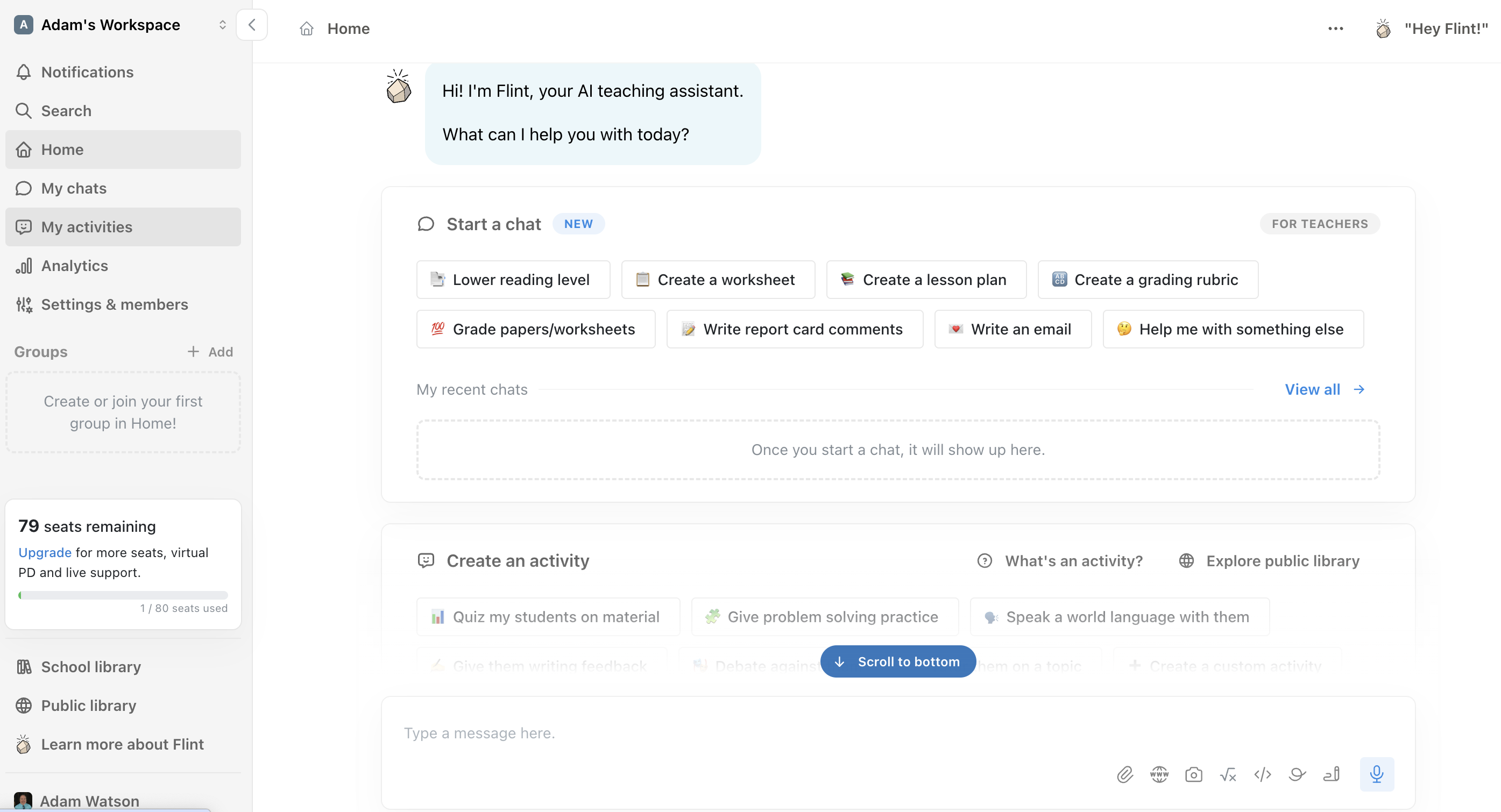
Once logged in, Flint offers itself as your "AI Teaching Assistant."  For the upper section of the home screen, it suggests several ways it can help your instruction, such as lowering the reading level of a text, creating a lesson plan or rubric, and writing an email.  In the lower section, you can create an activity published to an online space made accessible to students by a URL.  Teachers can also save time by using an activity from a public library of pre-made content. 


"Activities" are broadly defined here.  It could be "problem solving practice," "speak a world language" (50+ are available!), provide writing feedback, or create a "quiz."  Here, however, is an example of Flint using an antiquated term of expectations when compared to what students would really experience.

A quiz in Flint is really a conversation between the student and the AI.  Once you give it objectives, potential material to utilize via uploads, and/or standards, Flint begins an assessment by probing what students know, coaxing them when they struggle.  The results of this or any other activity are provided as "Analytics" that look at both how the class did overall as well as an individual's strengths and areas for growth.

Building an activity is a conversation between teacher and Flint.  Here, I asked if I could upload a standards-based rubric to make a quiz.


You could also just provide the standard you are wanting to assess.

Safety seems essential to Flint, given several different features it has to protect students.  Student and teacher data is not shared to third parties and data is not used to train AI models; the data stays secure in the school/district's domain.  Additionally, you can export any student-AI conversation to PDF, inappropriate messages are flagged, and every user exchange can be viewed by admin.  

Educators can make Flint "more or less flexible" with how it helps students.

Flint offers a depth of support for new users, from professional development resources to an onboarding guide for teachers.  They even have an AI Literacy Course for students, which includes lesson materials such as videos, slide decks, and Flint activities you can push out.

Here is Flint's most recent overview video on the platform posted on Loom (1:43).

How could you use it?

Flint offers specific, targeted opportunities for both instructional design and student demonstration of understanding.  Its offerings of World Language activities is unique.  Flint provides students a first tier of tutoring support, particularly with its integration of a whiteboard that could improve math practice and review.  A quiz's use of naturalistic language changes the game for what it means for a teacher to assess.   Last but not least, Flint's ability to discover class data trends as well as drill down to individual student performance makes the potential action pivot from assessment analysis to adjusted instruction much quicker and easier.

Downsides?

One must always be cautious with the accuracy and veracity of artificial intelligence tools, as well as verifiable impact on student learning.  To Flint's credit, they mention several times in their list of features their efforts to be as accurate and transparent as possible, and they share several detailed case studies of partnerships with schools where student learning has improved.


"In-line citations" is one of several ways Flint attempts transparency in its AI results.

Elementary teachers will likely be just fine with the limit of 80 students in the free account, although secondary teachers may rightfully fret.  However, secondary instructors can delete and reassign the seats every few periods to get through a typical day, sacrificing historic data for extending the free usage.  That would hopefully give enough of an opportunity for a teacher to try out Flint to see if a premium account would be worth it.


Flint is not the only tool to promote itself as "AI for personalized learning," but its suite of features make it a contender for honoring that vaulted claim.  Come to it as a skeptic and see if it sparks some innovation for your instruction.

Have you used Flint?  If you are a heavy user of another AI platform, how does Flint compare?  Comment below!

Full disclosure: Flint is in talks with my employer OVEC for potential offers and opportunities for its members.

Wednesday, April 23, 2025

Writing with AI: WeWillWrite and Short Answer

As a former high school English teacher, a big fan of game-based learning, and a person with a keen interest in how artificial intelligence can positively impact student learning, I'm delighted when an edtech tool ticks off all three boxes.  Friends, I give you two such tools:  WeWillWrite and Short Answer.  In a world where we wonder what writing instruction will look like in the near future of school, these AI-empowered tools might show us one possible way.

There are several similarities between the platforms:

  • Both combine competitive and cooperative gameplay to writing; an individual student replies to a prompt set by the teacher, then uses established criteria to evaluate the writing of others presented anonymously (providing gamified feedback), "voting" until a winner emerges.
  • You should hopefully get enough in the free versions to test out each platform (including premium trials), but as with many AI tools today, you'll have to pay to unlock more features.
  • Both have libraries of pre-made material.
  • Once the teacher launches an activity, students join with a PIN; the students do not have to create an account.
  • There's a process at the end of games that encourages the teacher to show and share submitted responses to elicit further discussion.
  • Both platforms have teachers as part of their design teams.

However, both have different strengths.  Here's more details on each tool.

WeWillWrite

WeWillWrite was developed by a Norwegian team of educators.  (I found it interesting that one of their advisors is Johan Brand, founder of Kahoot, as I can see a bit of Kahoot's design aesthetic in the platform.) WeWillWrite's learning principles are Social, Safe, and Playful; you can read more here.   

First, you create a login with email and password (no Google SSO option).  After walking you through your teaching areas of interest, you have the ability to create classes to organize your activities inside.  You can choose prompts from the library in the "Discover" tab (via filters for ELA-related "Topic" and "Type"), or create your own with the premium plan.  The teacher determines the length of the response timer when launching a game.

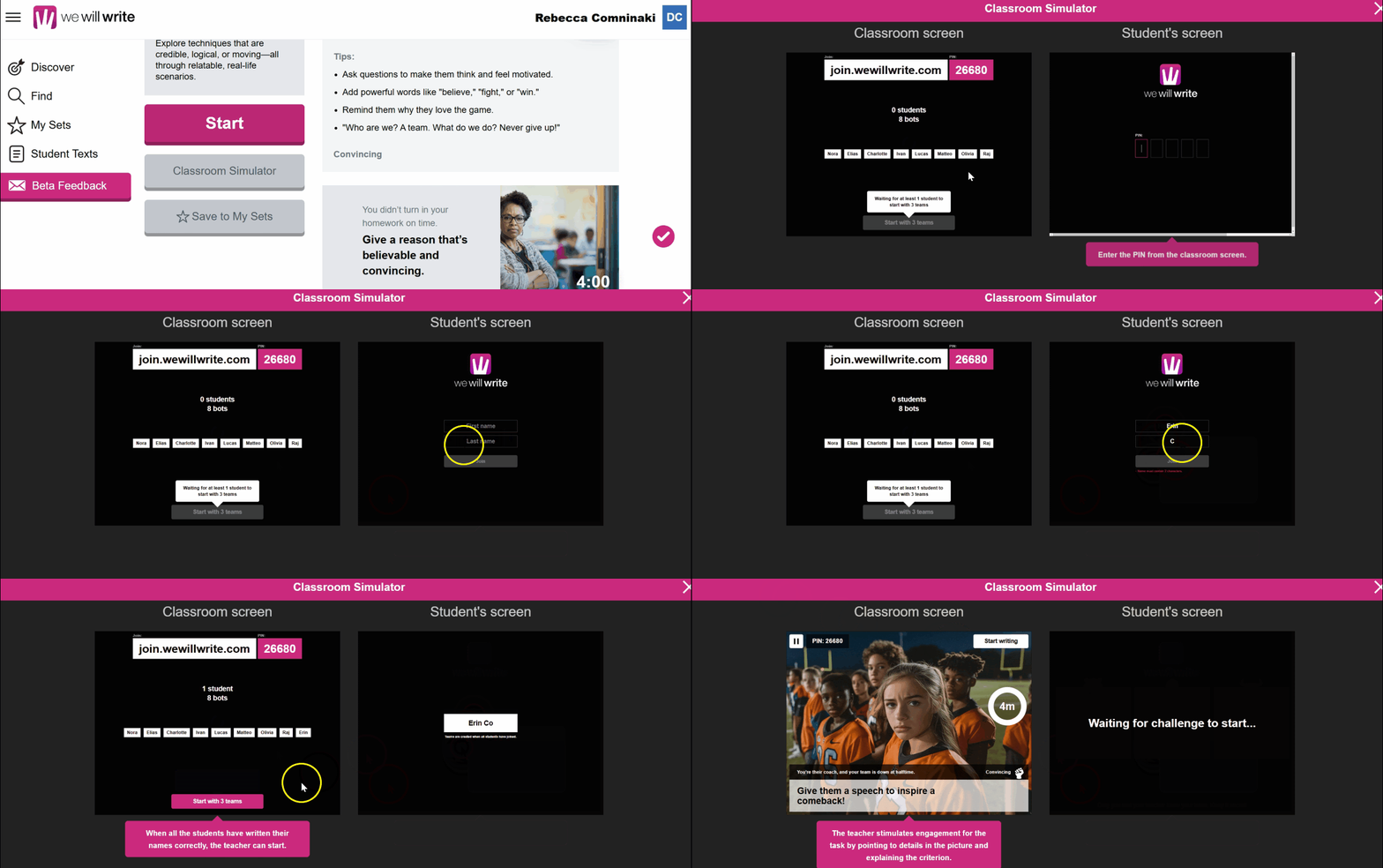
A "Classroom Simulator" allows you to see what it will look like for you and your students.

From a Google Slide deck of teacher resources.

Note that AI generated images are prominently placed alongside the prompts (with the premium plan, you can generate new ones or upload your own images, AI or not).  The overall visual look of WeWillWrite seems a bit more appealing to younger students, although I could see high schoolers also enjoying it too.

Before gameplay, students are randomly assigned teams.  (Manually selecting team membership doesn't look like an option currently.) For WeWill Write, a student first evaluates writing from their own team, which leads to a text that will represent their team in the game's final for another round of voting; therefore, the team is celebrated at the final leaderboard.

Once students have completed their work, you can view and download results under "Student Texts":

From a Google Slide deck of teacher resources.

For an overview of the platform, you can watch this video (1:48):


For more support, a Google Slide deck of teacher resources that could function as a solo PD is available here, which includes "Strategies for Success."

If you're interested in an upgrade, the paid plans are listed here.   Besides the ability to create your own content, it gives you full access to the WeWillWrite library, student history of work over time, and allows you to do the "AI literary device analysis" feature as briefly shown in the video overview above. 

Short Answer

Short Answer was designed at the Stanford Graduate School of Education, creating "an experience based on learning science." (Cofounder Adam Sparks was an English and Social Studies teacher.)  You can read more about their approach here.

You can create a teacher account for Short Answer with Google.  

Unlike WeWillWrite, Short Answer does not have a class organizational structure for your activities.

You can choose prompts from the library or create your own (even in the free version).  You add "Feedback Criteria" (a bank of suggestions are available).  However, it's worth noting that Short Answer's library includes prompts for multiple contents and grade levels -- even, to my surprise, guides to help create prompts for math as high as trigonometry!


In the "Discover" tab, there are some "Starter Activities" prompts suggested, or tab across to one of the four main academic content areas to see others.


One of the premium AI features is helping students with stems and outline tools when they begin writing their response.

Short Answer has more gameplay modes than WeWillWrite, such as "All-In," "Pair-It," and "Battle Royale." (And I appreciate that Short Answer provides guided walk-throughs of each game via Arcade.)


The teacher and student view from the start of a "Battle Royale."

These games take anywhere from 10 to 45 minutes to complete.  Students play the games individually, and as such, the student with the most "points" is celebrated at the final leaderboard.  I noticed that a student can attach files or even use LaTeX formula characters in their response.

Once students have completed their work, you can view their individual results, but you cannot export/download results in the free version.

For an overview of the platform, you can watch this video (4:57):

For more support, a robust page of resources is here.

If you're interested in an upgrade, the premium option is described here.  Besides some of the features listed above, you can have unlimited question creation, open peer-to-peer feedback options for students, Immersive Reader support, and an additional game called Quick Write that has AI feedback.  

As of the published date of this blog entry, it looks like the premium version of Short Answer may cost a bit more than the premium version of WeWillWrite, but to be fair, Short Answer also offers several more premium features.  


I hope this blog entry inspires you to try both platforms out in your classroom.  Turn composition into a joyful, vibrant experience by gamifying your students' writing!

Saturday, July 13, 2024

Snorkl

As a former high school English teacher, I always felt pressured to provide useful, personalized feedback quickly.  Digital tools like the Comment feature in Google Docs became popular just as I was leaving the classroom, and certainly shifted the paradigm when it came to giving "just in time" quality feedback.

Now, thanks to artificial intelligence, we are on the precipice of the next generation of digital feedback that can transform teaching.   For some time now, genAI chatbots like ChatGPT already offer an augmented opportunity to comment on student writing -- if you are willing to engineer a prompt for what you are looking for, then copying and pasting each student essay into the tool, then copying and pasting any AI feedback you wished to share back with a student.  (You can even include your rubric in your prompt, so you can get your feedback with a suggested assessment score.)  This is free and helpful, albeit time consuming and clunky.

But now we enter what I am calling the "refurbished" phase of AI.  In these newest AI tools, the programming is more hidden under the hood, while the interface is much more user friendly and less dependent on prompt engineering.  And that leads us to the tool for today's entry: Snorkl.  While its strength in providing feedback for solving math problems seems obvious, its potential for analyzing reflection and metacognition in multiple content areas is also apparent.

How does it work?

You can sign up free with a Google or Microsoft account.  Snorkl will ask you whether you are a teacher or a student -- I'm not sure how easy it is to change this if you answer wrongly, or are wanting to see what the other side is like before trying to return to your standard role, so choose wisely.

Your home page is intuitively organized with several options.  A "Getting Started" box provides light tutorials for how Snorkl works. Some videos to watch are in "Resources."  You can explore premium plans; although a free account gives you unlimited classes and co-teachers, you have "limited" activities -- an actual number is not specified.  Last but not least, you can create a class where you can then make activities for students (a share link for your activities makes it easy to get students jumping in).

Your Home tab.  Note the tabs across the top for Classes and Library (see below).

What does Snorkl feel like for a student? In the pre-made "Try as a student!" section, several prompts are given so you can experience Snorkl for yourself, and reveal its potential for a wide range of content.  For example, there's one for "Trig Ratios," and another that asks you to "Identify the author's feelings about New Orleans in this 4th grade ELA assignment."  I was intrigued by the "Peanut Butter & Jelly Sandwich" activity -- a classic writing prompt I used years ago with students to show the importance of details when describing "how to" instructions -- so that's the one I chose.

When I opened it up, I first encountered the "Response Whiteboard."  

The activity's instructions are in the upper right, which can also be read aloud to the student.

As you can see from the toolbar at the top of the whiteboard, there are several buttons that allow you to insert text, pictures, and formulas for your response; while you can use the mouse/trackpad to draw, it's probably not as natural as using your finger or stylus on a touchscreen device. (This is the same whiteboard interface the teacher uses when creating the activity prompt for students.)  However, "Record Screen + Voice" is where the real magic of Snorkl resides.  While you can write or draw to your heart's delight before hitting this button, you really can't submit your response unless you make a recording.  That's because Snorkl takes what you say and converts it to text for the next step of the process. Of course, like any screencast, you could draw and type as you talk.  (The first time you do this, you'll be prompted to give permission for Snorkl to use your microphone.)

Once you submit your response, Snorkl uses AI to, in effect, analyze your thinking out loud and tell you how well you did.  The first time I responded I didn't doodle and simply talked through how to make a PB&J.  After several seconds, I got back this screen:

The comments on the right are timestamped; click on the time and you can go straight to that part of the recording.

I have to admit, this had me pretty slack-jawed.  You can play back your recording, with a running transcript in the form of captions.  Snorkl provided some simple overall feedback ("Correct," "3/4 Strong") followed by impressively detailed commentary.  Even the tone seemed appropriate -- Snorkl celebrated my strengths ("Great job on giving a detailed explanation...I love how you even included the part about opening the bread bag") while also providing me ways to improve ("Have you tried using the same knife for both the peanut butter and jelly?").

If you like, you can do another response, with either a clean whiteboard or pick up where you left off.  These additional responses become a history that you can revisit and review, to see your growth over time.

The Portfolio tab shows how Snorkl can be a place for artifacts for learning; for example, imagine a student pulling out a response during a student-led conference with their parents. 


Of course, teachers can review and play the videos of these submitted responses.  Once several responses have been submitted, Snorkl's website suggests that a teacher will be able to see some class-level insights, such as "top exemplars" and "common misconceptions," but it is also possible such insights are only fully available as a premium feature. 


Snorkl calls itself "a versatile tool for all subjects, used from elementary through college."  As an additional nod beyond the "try as a student" examples indicated above, the platform also provides some pre-made activities in several content areas and grade levels in its Library.


The library bank already covers many grade levels, with more "coming soon."


Finally, for a video on getting started with Snorkl, watch the following (3:24):


How could you use it?

Students could be assigned a Snorkl task:

  • as a more interactive type of "flipped learning" homework
  • during class as part of a blended learning station rotation
  • at the end of class as a formative assessment exit slip to determine if they understood today's content (and give the teacher data on what misconceptions to address for tomorrow's class)

Downsides?

Snorkl offers some powerful features for free, so it is hard to find faults with the tool itself beyond just how many activities you can create at no cost, or the possible limitation of the drawing features if you don't have a touchscreen device.  From a teacher's perspective, it truly can become a powerful "instructional aide" (not teacher replacer!) in your classroom.  A more likely negative is about the potential for a teacher to overuse the tool, or use it without also checking student work in person.  As always with edtech -- especially with AI -- practice moderation, oversight (it's not always right), and balance.

Have you used Snorkl, or a similar AI tool?  Share your stories in the Comments below!


Wednesday, January 17, 2024

The Refurbishing of Artificial Intelligence

Hello everyone, and welcome to 2024!  Hope you had some happy and restful time with family and friends over the winter break.

Back in December of 2022, I published a blog entry titled "How AI Will Save Education."  It was just a few weeks after ChatGPT 3.5 had debuted on November 30, and as I put it back then, it "exploded into our zeitgeist seemingly out of nowhere, and it feels like something foundational has rapidly and irreversibly shifted in education...indeed, the world."  There was a lot of strong feelings in the air: wonderment to be sure, but also fear.  And there were many questions.  What does it mean to be a "writer" or an "artist" when AI seemingly has the capacity to be creative?  How does teaching look differently in such a world?   Perhaps most worrisome for educators: What can or should I do if students "cheat" with AI?  Is it cheating to use AI?  Will my time be consumed with a neverending quest to catch students passing off AI-generated work as their own?

Certainly, we still lack definitive answers on those questions, nor is it possible to be definitive when discussing something as rapidly evolving as artificial intelligence.  On such a topic, pressing "publish" almost instantly puts you out of date.  But a year later, some answers have emerged. While I won't dare presume to be the oracle or the burning bush of artificial intelligence, I thought it might be helpful to offer my perspective on some AI trends that have caught my personal eye, and share some selected articles and tools that have emerged in the last twelve months.

The Reality of Students "Cheating"

As it turns out, perhaps we can dial back from the feeling of panic that befell us in December 2022.  As Stanford researchers discovered, "Cheating Fears Over Chatbots Were Overblown" (The New York Times, 12/13/23).   In their recent survey of over 40 high schools in the United States, the amount of students who admitted to have cheated at some point has remained the same 60-70% range that it has been for years.  More fascinating, "[m]any teens know little about ChatGPT...[a]nd most say they have never used it for schoolwork."  Two sets of numbers from the research jumped out at me.  The first is that when looking at all U.S. teens, 44% said they only knew a "little" about ChatGPT and 32% said "nothing at all."  That's three out of four students!  The second shows what could become a disquieting trend of racial and socioeconomic inequity.  When deconstructing the total teen numbers into White, Black, and Latino demographics, the total numbers of "little/nothing at all" are relatively close.  However, when broken down by group, you can see the awareness of ChatGPT inching upward for Whites (50% know at least a little about the tool, versus 27% knowing nothing at all) when compared to Blacks (35%/44%) and Latinos (42%/37%).   Household income makes the disparity even stronger. For households under $30,000, students that know "a lot/a little/nothing at all" about ChatGPT is 11%/30%/59%, compared to the students from households $75,000 and over:  26%/50%/24%.

Does this reflect that ChatGPT is being blocked more at schools in "certain areas"?  Are educators trusting, and teaching AI to, some students more than others?

In a separate set of experiments in September 2023, Stanford researchers explored how well AI cheat detectors were working.   The short answer: not well.  There were a number of both false positives and false negatives.  In fact, when the scientist simply asked the chatbot's generated essay that had been previously detected as AI to "elevate the provided text by employing literary language...[d]etection rates plummeted to near zero."  Another disturbing finding: actual essays written by multi-language learners were often falsely flagged as AI.  This is likely because the more simplistic, emerging language skill of such students seem to reveal the bias of the AI detection programmers: simple text "must" mean a machine wrote it.

Of course, this issue of cheating doesn't address the powerful opportunities to ask a chatbot AI to generate an initial draft of a paper for the student to improve and revise, or to have it provide major points to consider in an argument, or the need to make sure AI is properly cited when used.  Passing off someone's work has always been cheating, whether you Google an essay and pretend it's your own, or when a machine (or human!) writes something for you and you just put your name at the top.   What is important is for students to learn, debate and practice the ethical use of AI.

So, in summary: students may not be using AI chatbots as much as we think, and student cheating with AI (and the software that detects it) is a complicated topic at best.  In fact, we may need to think more closely on how AI is being permitted on school devices and networks, if enough awareness and ethics of AI are being taught, and at the most basic level, reflect on how our concern of "cheating" may be unfairly manifesting itself into inequitable practices in our classrooms.

Proactive and Positive Uses of AI in Teaching and Learning

On a more positive note, there have certainly been numerous reports in the news and research of the potential of AI having a positive impact on learning...or at least approaching it with cautious optimism. Here are a few recent examples: 

  • Carnegie Learning has launched several AI tools to help students and teachers. In particular, LiveHint AI is providing real-time math tutoring support.  The tool helps coach students to understand the problem-solving issues of a difficult problem, not simply giving them the right answer: “ 'When students use it, they have the ability to provide line-by-line feedback. If there’s any particular response that they either like or don’t like, [the students] can comment on it,' Carnegie Learning Chief Data Scientist Steve Ritter said. 'And then overall, in terms of the overall quality of the session, they can also comment on that.' "  According to Ritter, the tool has been received positively by faculty and students. ("This Pittsburgh edtech company uses AI to help kids learn math amid ‘uncertainty’ about the tech," technical.ly, 1/4/24)
  • Harvard researchers have been studying the impact of AI-generated feedback on students.  The results were positive for teachers, but mixed for students.  Teachers appreciated how AI sped up their ability to respond, as well as gave them ways to customize their feedback to a student's needs.  Many students appreciated how such feedback improved the feeling of a perceived "caring classroom culture" (likely because it was timely and seemed to be responsive), but some struggling students felt the feedback was "unhelpfully short and insensitive."   ("Harvard researchers explore how to use generative AI for student feedback," WBUR Public Radio, 12/27/23)
  • The University of Kentucky's Center for the Enhancement of Teaching and Learning has published some AI resources on its website.  In particular, I'm impressed with their "Course Policy Examples," which give an instructor options and exemplars for clarifying whether AI is permissible in their class, from "No [Student] Use" at all, to "Conditional," to "Unrestricted."  

From Prompt Professors to Pragmatic AI Professionals

When the generative chatbots came out in full force in early 2023 (ChatGPT and its rivals like Google's Bard, as well as various graphic-generating AI), there seemed to be a brief time when the educator who was an expert in "prompt engineering" might be the next new thing.  Certainly, we soon became awash in websites and PDFs offering effective prompts to copy and paste for our own AI adventures (such as this one).  What it reminded me of was the pioneering past of other Internet tools.   Do you remember the halcyon days of Geocities, when the idea of publishing your own personal website made us hungry to HTML code?  Or the beginning of Google Search, when we all were ablaze with Boolean operators and the power of a well-placed parenthesis or quote mark?  This was grand stuff for early tech adopters, but for most of us, the effort of process overwhelmed the product.  We don't want be an expert HTML coder unless we plan to create sophisticated websites full-time; we just need a decent templated site that gets our message across.  We prefer a natural language inquiry that gets us the right result, rather than pondering whether it is better to type "AND" instead of "OR" in a search engine.  In short, it is the content that is king. 

In the same way, the appetite for using an AI tool like ChatGPT is also shifting.   We appreciate the power of AI, but want to concentrate on where the vehicle takes us, not so much the vehicle itself.   What that has led us (in a remarkably short amount of time!) is into a world of tools that refurbishes artificial intelligence into an interface that is more inviting and user-friendly.   The word "refurbish" may at first bring to mind a negative connotation, if you only think of the broken device that is fixed and resold at an electronics store.  However, I'm leaning into the original Oxford Dictionary definition of refurbish as renovate and redecorate.   That is an almost literal description of what many new AI tools are doing.  They often take the same "raw" AI code -- such as ChatGPT -- and put it in a renovated, redecorated package that is easier and often more effective to use.  In fact, if the tool has a premium tier, people are now often willing to pay for such convenience, regardless if or whether the raw AI engine underneath the tool's hood is free or relatively inexpensive.  There's a bit of irony at work here; many of the same people (especially educators) struggling with their "buy in" for AI in 2022 are now buying AI.

Here are just a few AI tools that offer outcomes that would have seemed impossible for technology to achieve just a few years ago.  (While there are not necessarily education-specific, it takes the smallest leap of imagination to see how they could be used creatively for learning by a teacher or a student in the classroom!)

  • Beautiful.ai.  An AI-assisted presentation tool, this is particularly powerful in creating infographics within seconds.
  • Synthesia.  This can not only create videos with AI, it can insert a virtual lifelike avatar that speaks the script you type for it, in over a hundred languages.
  • Owlift (formerly called "Explain Like I'm Five").  The tool takes what could be complicated subjects and adapts the explanation of such topics for an audience of varying needs.  Note that you can not only toggle how you're feeling on the topic ("pretty dumb/dumb/smart/pretty smart"), but also whether you want the reply to be sarcastic or not.  The snarky language aside (which arguably may not be appropriate for a young student to interact with), the nuanced functionality of the tool makes it worth mentioning.
  • I also need to mention that many popular online tools now include some sort of embedded AI tool, from Zoom to Canva to Google Docs to the writing of LinkedIn posts.
From the website Owlift (formerly known as Explain Like I'm Five).

This refurbishment concept can particularly be seen in educational tools.  It is no small thing to save me time from constantly having to tell AI at every new prompt, "I'm an educator," so that it shapes its answer accordingly.  As such refurbished and personalized AI becomes increasingly sophisticated in the near future -- it will soon know and remember that I am a fourth grade teacher who needs a science lesson every Tuesday, and which of my students will need a translation in Spanish -- the possibilities for AI to become my "artificial instructional aidebot" loom larger and larger.

Here are some promising education-specific tools, with some accompanying cautionary tales:

  • Toddle.  A learning management system I first discovered at the Aurora Institute 2023 conference, it was the first LMS I've seen that incorporated AI into its platform.  When the LMS has been preloaded with your district/school curriculum, it can leverage this (along with information about your grade level, content taught, etc.) to have very specific results within Toddle itself, which can then be easily exported or incorporated into your classes.  (And Toddle is not unique in its AI upgrade; since I first encountered it, I've seen several more learning platforms add a version of AI to their toolbox.)  It's great to keep your AI generation within the same browser tab as your LMS!  It should be noted, however, that the purchase of Toddle does not automatically include AI, as it is a premium feature (and likely this would be true of other LMS's that add AI as a feature).
  • Curipod.  Another AI-powered presentation tool, but more focused on student and teacher usage.   By entering in your prompts, a lesson plan in the form of a multi-slide deck with built-in interactives for students is generated.  The features and the name remind me of Nearpod, and like that platform, a student can join a teacher's live session with a PIN.  There is a limited free account available.
  • LitLab.  A tool for creating "AI decodable books" to help primarily with early literacy.  Once perimeters are given, an online book is generated with customizable text and images, which can then be shared with students via its URL.  However, the images, while clearly AI generated, are not very sophisticated, nor are they specifically tied to what is occurring in the text of its particular page.  While currently free (if you nab one of the limited initial seats available), the platform will become a paid service in June 2024.
  • Magic School AI is impressive by having a one stop shop approach to AI integration.  You can discuss ideas with Raina the Chatbot, which can then export your result as needed.  Additionally, there are several dozen AI "Magic Tools" that lean into a specific need.  Examples include "Text Leveler," "YouTube Video Questions" (give the video URL, and you can create a custom assessment based on the video's content customized by grade level and number of questions), "Choice Board (UDL)," "Project Based Learning" (create a plan), "Rubric Generator," and much more.  (Again, it should be pointed out that free chatbots can generate many of these outputs, but perhaps without the specificity and convenience this platform can achieve.) While Magic School offers an initial free trial, it does eventually cost to use.

Magic School AI

One of Magic School's "Magic Tools" is an "IEP Generator."  This brings up one of the biggest takeaways and pieces of advice about using AI, regardless of the platform or type: be mindful of what you put into a prompt, and be careful how reverently you treat its output.  To further explore this example, I asked my OVEC colleague and special education teacher Dr. Debbie Mays for her opinion, and Dr. Mays shared some thoughts she and her ECE colleagues have had on using AI for creating an IEP: "We have the concern of confidentiality and information being exposed [when personally identifiable information is inputted into an AI tool]. Also, if AI just considers federal requirements, it may miss the unique state regulations and statutes that do need to be considered and followed. It has to do both, as well as follow district policies and procedures. Finally, the intricacies of an IEP – all the connections and 'threads' that need to be addressed for that specific student throughout the program -- will probably be missed, opening the district to legal ramifications." Ultimately, Dr. Mays gave her personal "thumbs down" on AI-generated IEPs, but acknowledged "there may be ways to use it. The trick is a teacher needs to know how to write an appropriate Individual Education Program. If they don’t know how and need help, they may not know how to fix one either, if AI started one for them."  Again, while applying AI to IEP creation is a very specific use case example, it illustrates the general need for educators to practice discernment.   AI is not infallible, nor is it always "right."

As I wrap up this entry, we can see that the last year has proven the reality of AI is somewhere between an apocalyptic destroyer and consequence-free manna.   In May 2023, the U.S. Office of Educational Technology published "Artificial Intelligence and the Future of Teaching and Learning: Insights and Recommendations." In a brief handout with the paper's core messages, a comparison was made between electronic bikes and robot vacuums.  Robot vacuums may be treated as somewhat independent machines, with a "mind" of their own; such machines may be disruptive in the way that they can substitute for a human completing the task it was designed for, or perhaps more ominously, replace the human worker that was previously needed for such janitorial labor.  However, the OET would assert that it is more accurate to think of artificial intelligence as not our eventual robot overlords, but as an electric bike: "We envision a technologically-enhanced future more like an electric bike and less like robot vacuums. On an electric bike, the human is fully aware and fully in control, but the burden is less, and their effort is multiplied by a complimentary technological enhancement."

From the OET's summary handout of their May 2023 full report.

In the world of our educational future, we should hope to use more artificial intelligence "electronic bikes" for ourselves and for our students.  Let's embrace AI to augment and enhance what makes us human so we can dare to dream, think, make, and create in even more innovative ways, and by doing so, transform the learning experience.

Update 6/15/24:  The website "Explain Like I'm Five" is now Owlift.  I edited the entry in the appropriate spots above.


Monday, October 12, 2020

Mote and ClassroomQ for Feedback, Discourse, and Classroom Management

 In today's challenging blended learning environment (which may consist of students learning from home, students learning in person, or a concurrent hybrid of the two), you want to maintain the basic building blocks of an effective classroom.  Such a learning space should have opportunities for varied feedback, structured discussions, and scaffolded classroom management.   Mote and ClassroomQ can help with one or more of these aspects!

How do they work?  

Mote is primarily a feedback tool that allows users to make a voice recording up to 30 seconds long inside of a Google Docs Comment.  (Mote also works inside the Comments of Slides, Sheets, and even Google Classroom.) It requires installation of a Chrome Extension to make a Mote, and accounts can be created via a Google sign-in, although neither the extension nor an account is required to listen to a Mote.  In the free version, you can both create and listen to an unlimited amount of Motes.  For more on Mote, please see the following Google Slide presentation I have created, along with an example Mote on Slide 3.

ClassroomQ is essentially a "hand raising" digital web-based tool; students who request help are queued up in the order they hit the button.   Teachers create a free account via Google or email.  When a teacher logs in, a session is begun, and a "class code" is given.  (Tip: this class code is unique to the teacher account and stays the same code for every session you begin, in case you want to permanently post it.)

Students who want to join a session do not need to create an account.  By choosing "student" when they visit the site, they will be prompted to type their name and enter the session's class code.  Once they have joined the session, they can hit their button when necessary along with the option of adding a comment in a text box; a student will be told their place in line, and can also cancel their request.  (From their session perspective, students cannot see which other students have requested help or what comments they may have made.)   


Teachers will see up to 5 student names queued up in the order they hit their buttons, along with any comments.  (Note the teacher interface allows you to toggle off student comments so they are not visible, if you only want names to appear.) When a teacher has resolved a student's question, the student can be removed from the queue.  

One of the advantages of ClassroomQ is its extremely easy interface -- there is no way to get lost, and in fact, a teacher could easily manage a session from a small screen device like a phone.


A screen capture to demonstrate what ClassroomQ looks like from the perspective of a teacher on a phone.  Note that the class code is marked out in the image, and if you turned the phone horizontally, the student name and commentary would perhaps format better.


How could you use them?  Mote provides an alternative feedback method for students that appreciate a kind of commentary beyond just text (and hearing their own teacher's voice feels more personal!). Students that struggle to understand "tone" linguistically will have auditory support.  If your students are challenged by reading (pre-literate, EL, and/or ECE) they will also appreciate a voice recording that you can play and pause and repeat as needed.   Students that have their own Mote accounts could make voice commentary that would enhance peer-to-peer feedback as well as potentially create a "voice discourse" without the possible distractions and anxiety associated with a video commenting tool like Flipgrid.  (Although in fairness to the wonderful video-centric Flipgrid, they recently have added the ability to make text comment responses to videos.)

As the video below discusses, ClassroomQ can be more than a way to digitally raise hands for help (whether your students are in person or at home, or a mixture of both); for example, the video mentions using it as a game buzzer to answer review questions.  You could also gather instant feedback for how your lesson facilitation is going, determine the order of when volunteers will present, or initiate classroom discussion managed by the teacher if students utilize its comment feature.  (This last idea may especially come in handy if you have blocked chat and muted student mics in a virtual meeting.)


You can also imagine some interesting possibilities for app smashing.  Perhaps a student lets you know via ClassroomQ when they are ready for you to read over the opening paragraph on a Google Doc, so you then can make a Mote voice comment for next steps.  With ClassroomQ, you may also selectively choose to share your screen in a teleconference meeting and let all students see student comments, as another way of facilitating discussion.

Downsides?  While both tools have a free initial tier, you have to pay for upgraded features: 

  • Mote pricing for premium features start at $19/year for an "Essential" individual plan which extends your Mote time from 30 to 90 seconds; the $39/year "Unlimited" individual plan allows for voice-to-text transcriptions of your voice comments, in-app translation of those transcripts to one of multiple language options (a potentially powerful ELL feature!), and more.
  • ClassroomQ pricing for premium features start at $19.99/year for individuals (school or district licensing also available) to lift the limit from 5 students in queue to an unlimited number, the ability to see who joined your session, and exportable session data.

However, the free versions of both tools offer significant usefulness and may be more than enough for your classroom needs.  If nothing else, the free versions give you an opportunity for a robust try-out of the tools before you shell out dinero.  Most importantly, cost is only at the teacher level -- ClassroomQ doesn't require a student to ever make an account, much less pay, and Mote voice notes can be played by students without them ever creating an account (although they need to make at least a free account to create a Mote).

Are you using Mote or ClassroomQ?  How do you integrate them into your classroom? Leave Comments below!


Tuesday, August 15, 2017

Spiral

Spiral is an online tool that has remained stuck in my head since I first encountered it several months ago.   It seems here to stay and continues to grow and improve.  Spiral is a remarkably robust "classroom learning platform" that is free** (with some premium features coming down the pike soon).   If it did only one of its main apps well,  I'd be impressed.  However, it does several things well in one online location...in a user-friendly way...with the capacity to supercharge learning.  The teacher's dashboard optimizes real-time analysis of student interaction in an uncluttered view.  Last but not least, a student-centered approach is clearly part of Spiral's DNA.

Spiral consists of four apps:
  • Quickfire.   You can create "quizzes" in advance or simply do verbal prompts on the fly for students to answer.
  • Discuss.  You can import a PowerPoint or Google Slides (or make slides from scratch).  A running chat room allows discourse throughout your presentation while you push out slides, and you can add discussion questions at certain points.   The mechanics are such that students are encouraged to see each other's comments and respond to each other -- a much more student-centered experience than typical direct instruction.  (In some ways this is like Nearpod, but Discuss is much more about creating conversation among students.)
  • Team Up.  An opportunity for students to collaborate and create a presentation to share with the rest of the class.  While Google Slides offers a stronger collaborative tool for a more formal presentation, I like how easy this makes it for a teacher to group students together (randomly or intentionally), create roles, and assign activity objectives and/or group sub-objectives.
  • Clip.  Take a YouTube video and insert multiple choice, open response, or class discussion questions at certain points in the timeline; the video stops and prompts the student to answer before continuing to play. EDpuzzle and PlayPosit do similar functions with more depth and options, but Clip gives up complexity for a simple, streamlined tool that would likely meet the assessment needs for most teachers.
The teacher's dashboard easily allows you to see student responses in real time.  If you are connected to a projector, you have options of highlighting and sharing responses on the screen (with or without student names).  All of the student answer data generated from each activity is always saved, and found in the teacher interface under "Timeline."   They are visual and easy to review, but the data from each session is also available as an Excel export.

One of the best things about Spiral is the simple but effective nature of its teacher feedback system.   For most of the apps, you either give a student response a checkmark for "correct" or push it back to the student to edit and improve their answer.  Considering that most of Spiral works best in a real-time synchronous environment, this is the most effective method for a teacher truly facilitating the student-centered learning environment. If it's meant to be essays or formal products that need rubrics or more detailed feedback, consider a different tool.

How does it work? Teachers can create a free account via their email or choose to log in with an existing account; currently, the options are Google, Facebook, Twitter, Clever or Edmodo.  (Note that Google Classroom integration is also possible in Spiral.)

You then can create multiple classes, each one with a unique code.  This code is how students will join your particular class.  (Note that launching an activity from a certain class has this same class code; this consistency is similar to Socrative, where your room code is always the same.)

When students first create an account, they are first asked the class code, but then have a choice; they could just put their name and jump into a launched activity immediately, or use the same options as a teacher in order to join with an existing account.   Also worth noting: students will either use the standard Spiral website and click on student login at the top, OR they can go to gospiral.ac to join a launched activity.

The way a teacher can create an activity to launch is quick and intuitive.  Here are some short video overviews of each app:

Quickfire video (3:11)


Discuss video (4:55)


Team Up video (4:11)


Clip video (5:02)


There are several small but significant aspects of Spiral that I appreciate.  I like how in Quickfire, you can choose for students to either answer in text or via a drawing mini-whiteboard.   A timer can be added for Quickfire, Discuss and Team Up activities.  "Shuffle" in Discuss randomly makes a student have to comment on another student's reply, ensuring all are engaged. Last but not least, Spiral seems very mobile friendly if you have BYOD in your classroom.

How could you use it?  Clip would be perfect for flipping instruction with an instructional video.  By asking a few questions, you not only can track participation but get a pre-class assessment on where student comprehension is.   Team Up can give a more structured approach to collaborating and sharing knowledge, especially when you just need an informal end-of-lesson sharing.  I'd love to use Team Up as a digital jigsaw activity.  Discuss would be great for a workshop whole-group direct instruction anchor activity while still keeping engagement high by having discourse. Quickfire is rapid enough for "pulse of the room" assessment and exit tickets, even if you have not prepared in advance and you are using verbal prompts.  Lastly, Quickfire's drawing response feature allows more of a "show your work" approach, especially useful for younger students in math.

Again, the beauty of Spiral is that you can do all of these apps from one location and login, without having students jump around to different sites (for example, from Nearpod to EDpuzzle).

Downsides?   It would be a nice option for teachers to be able to give detailed feedback or reply to student comments in Discuss or Quickfire, but I admire Spiral for keeping it student-centered and choosing rapidity over depth; as a formative tool, it is only meant to basically let students know "you are correct" or "explain more in detail."

Manually creating rosters doesn't seem to work well.  Students aren't able to pick their names off a list and save any time when you create a roster, although this may be a glitch Spiral is fixing; until then, you need to allow students to create their own accounts via an existing Google, Edmodo etc., integrate Spiral with Google Classroom, or simply allow students to enter on the fly by inputing their name for every new assessment (similar to how Kahoot works).  In the free version at least, you cannot see data across various assessments, so it's not a deal breaker if the student login is not consistent, but if you plan on using this often, I recommend a more uniform approach to how students choose to enter the platform.

Spiral Premium features include adding "steps" to QuickFire questions as well as student progress reports.


Do you already use Spiral?  Can you think of other creative ways you could use it in a classroom?  Please Comment below.

**I recently noticed that the Spiral pricing structure has changedIn particular, the free version of Spiral no longer includes the Discuss, Team Up or Clip tools. (updated 7/24/19)

Friday, May 29, 2015

TUIT: Adam Hicks, Katrina Boone, Kari Patrick (Shelby County High School)

Today is the last day of school for students in Shelby County!  As the end of my tenth and final embedded school visit with Simpsonville Elementary comes to completion, I feel the inevitable wrapping up of Edtech Elixirs for 2014-2015 fast approaching.

As my last #ShelbyTUITshoutout for this school year, I want to highlight some previous work by three fine teachers at SCHS: Adam Hicks, Katrina Boone, and Kari Patrick.

(Quick plug: Adam is also our county's Teacher of the Year for 2014-2015!)


By reviewing their innovative work, we can also look ahead to what teaching may be like in our high school classrooms next year, as our 1:1 initiative begins.

Mr. Hicks, Ms. Boone and Ms. Patrick worked collaboratively on a new digital way of teaching, creating and revising writing in a blended learning digital environment. A few months ago, they discussed their "flipped writing" work at the 2015 KCTE/LA annual conference.  (Their presentation materials are on Mr. Hicks's website.)

First, as students begin writing their essays, Mr. Hicks has a series of tips pertinent to certain writing skills always accessible via his website.  (Here's an example on using text evidence.)

Next, after major writing assessments, student exemplars are chosen.  This honors excellent work and offers an authentic publishing opportunity.  However, as Mr. Hicks points out, the samples are not always from the same “good writers”; rather, a diversity of student work is showcased, since exemplars concentrate only on certain standards/skills, which exhibit the various strengths of each member of the classroom. Mr. Hicks considers this the most meaningful part of the flipped writing experience.

Lastly, students use digital remediation in a variety of ways: peer review, reflection, and revision.  The students create Google Blogs and Docs to share their thoughts and give commentary on work. (This is a great example to consider while training for GAFE next week!)


  • For Mr. Hicks's student directions on how to create a Remediation Blog, click here.
  • For examples of student blogs and Docs, scroll to the bottom of this page.
In addition, Ms. Boone and Ms. Patrick’s Hybrid Research Paper utilized a bank of videos, made by several 10th grade SCHS teachers, that gave pointers on certain writing standards and skills.  Students could access and revisit these videos “anytime, anywhere,” and the feedback from students on its impact has been positive.

These three outstanding teachers -- like so many of our #ShelbyTUITshoutout educators -- truly show the power of the digital conversion of learning, and how blended learning can be transformative for our district. May they be a model for the rest of us for how technology can help us aspire to heights we never thought possible.

Some last words for the hardworking teachers, admin, and staff in Shelby County Schools as they say goodbye to their students today: Cherish and celebrate! You have helped make academic growth, you have forged relationships, you have made a crucial difference in other people's lives. Education is never a final product, but always a process of becoming. Before you look forward to the summer ahead, look back and reflect on all your real accomplishments. I am proud and honored to be among you!


Wednesday, April 29, 2015

Rose/Bud/Thorn and Design Thinking

Ever feel like Acronym Based Education (ABE) is taking over?   It can lead you to trouble.  Especially when they can mean two different things, like saying LMS.  Do you mean a Learning Management System or a Library Media Specialist? Oy vey.

ABE aside, be patient in today's entry, as we'll end with a great feedback technique called Rose/Bud/Thorn.  But first, some context.

Project Based Learning (PBL) is something I've always wanted to explore and learn more about, so I was excited when our district announced some PD opportunities through the Buck Institute this summer.   Like many things in education, PBL often blends and overlaps with other strategies and modes of learning.  For example, personalization pairs nicely with PBL, as does another: Design Thinking (DT).

I won't presume to lay out the intricacies of Design Thinking in a short blog entry; I'm very much an early novice in learning it myself.  (This Design Thinking toolkit might be a good place to start.)  A few months ago, our Curriculum Assessment Coordinator Susan Dugle and the Southside Elementary Instructional Coach Robyn Marcum went to a PD on Design Thinking, based on a framework created by Stanford University's d.school. Here's a basic overview they learned from the PD and shared on how DT approaches a problem that needs a solution:
  1. Gaining Empathy.  Research the topic, and if possible, interview the person who has a need.  Dig deeper by asking clarifying questions to gain a deeper understanding.
  2. Reframe the problem.  Determine the true needs of the person/problematical situation, and develop insights from what you've experienced in your research, interview, or brainstorming. Define a problem statement: "______ (Name) needs a way to ______ (user's need).  Unexpectedly, __________ (insight)."
  3. Ideate.  Create solutions to test.  Don't be afraid to think outside the box. Go wild. Reflect.
  4. Iterate Based on Feedback. After reflecting, try to determine the most viable solution to prototype.
  5. Build and Test.  Make the "final" product and apply it. At the end of the process, reflect what worked and what could be improved, based on the user feedback.
It is the necessary context of DT that leads to the heart of today's entry: the Rose/Bud/Thorn strategy. (RBT), attributed to Dr. Lisa Palmieri. Although it pairs nicely with DT and PBL, it is a great way to get/give feedback that would be helpful in any context.  Here's a video from the Consortium for Public Education that gives an excellent overview (6:44):


As Dr. Palmieri has said elsewhere, RBT can take about 10 minutes of class time and is more about "gut reactions" to how things went; it is NOT meant to be a time for finding solutions. (In the Design Thinking overview above, RBT might fit best either in step 4 (as you are trying to determine which ideas might end up being prototyped) or in step 5 (as you gather the user feedback as either roses, thorns, or buds).

The great thing about Rose/Bud/Thorn is that it is just fine in an analog environment.  All you need is three different colored Post-Its and a surface to stick them to.  However, if you want to consider digital alternatives that might be more permanent, interactive, and/or engaging, here are some ideas:

  • Use three different PollEverywhere polls (one Rose, one Bud, one Thorn) where students can respond via texting or the web. As an added bonus, create a word cloud with each poll (for example, a Wordle) to see if there are any commonly occurring words or phrases.  You can easily do a word cloud within PollEverywhere; here are some directions how.
  • Use Padlet to post responses.  This is probably the closest digital equivalent to the analog version of Post-Its on a wall. You may make three clear sections on the "board" and make sure to follow a consistent color scheme for each post.  The URLs to Padlets can easily be shared to others, and can stay put to look at later.
  • Do Post-Its the old fashioned way, but you or a student can capture the data with an iPad or iPhone with the Post-It Plus app.  You can take a picture of up to 50 Post-Its (works best if they are square), digitally group them in "boards" as you see fit, and share.  You can even export the finished boards in several formats, such as PPT or PDF. 

Good luck on improving feedback!

Special thanks to Mary Cantwell for writing the article on RBT that inspired this blog entry,  and the 1/7/15 tweet by Wicked Decent Learning (Dan Ryder, Jeff Bailey) that brought my attention to Ms. Cantwell's text.

Note 4/29/15:  After publishing this entry, I got the name of the people behind Susan and Robyn's Design Thinking PD discussed above: d.school at Stanford University.  The link is now inserted above.

Note 10/17/22:  I am thankful and surprised that this still shows up consistently in the weekly top ten of most popular viewed entries for my blog.  (As of this edit, it has well over 1700 views total!)  I noticed that the original video with Dr. Palmieri was no longer working and a few other links needed fixing, so I have shared a new video that I think is at least as useful as the original and did some minor updates, including some text clarity.